

CBSE has over time encouraged students to use DigiLocker as a platform to access their digital marksheets. The marksheet is issued directly by CBSE in digital format and can be used as an official document for admissions and verification purposes. Before checking the result, students are required to ensure that their DigiLocker account is activated and linked with their CBSE credentials.
How can I check CBSE 10th results 2026 at DigiLocker?
To begin with, students should keep a few key details ready, including their roll number, school code, and the mobile number registered with CBSE. In addition, a 6-digit security PIN provided by the school may also be required for account activation.
Step 1: Go to the CBSE DigiLocker activation portal, and select Class 10. Enter your roll number, school code, and the 6-digit security PIN provided by your school. Verify your details and complete OTP authentication using your registered mobile number. Once verified, your account will be activated.
Step 2: Visit the DigiLocker website or open the mobile app. Log in using your registered mobile number or DigiLocker ID and password. Complete OTP verification if prompted.
Step 3: After logging in, navigate to the ‘Issued Documents’ section on your dashboard. This is where CBSE uploads official digital records.
Step 4: Look for the document titled ‘CBSE Class 10 Marksheet 2026’. Click on it to open your result.
Story continues below this ad
Step 5: Your marksheet will appear in PDF format. Verify your name, roll number, school code, subject-wise marks/grades, and result status.
Step 6: Click on the download option to save the PDF on your device. This DigiLocker-issued document is official and can be used for admissions and verification.
Step 7: Ensure results have been declared by the Central Board of Secondary Education. If declared but not visible, recheck your login details or contact your school for help with activation or PIN.
In addition to the official websites – CBSE’s result portals, and DigiLocker, it will also be released on UmangApp.
Story continues below this ad
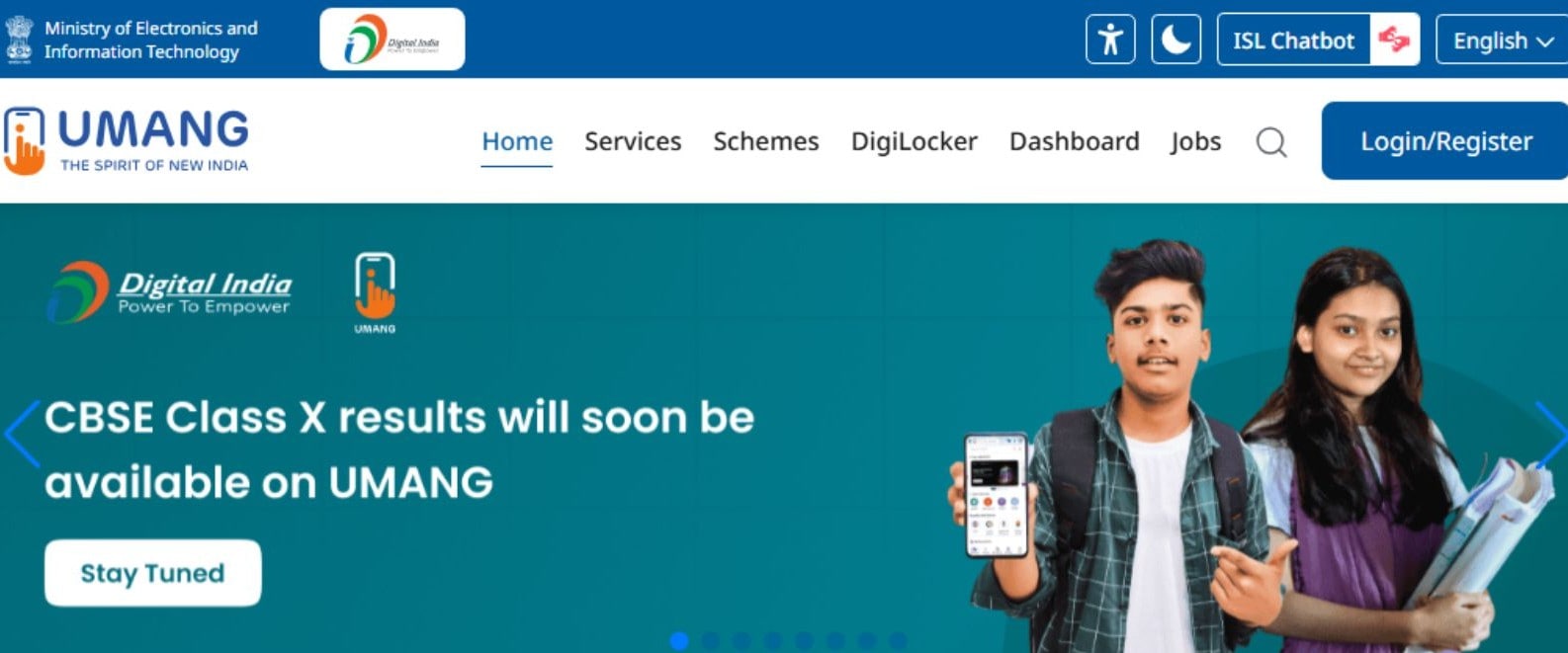 CBSE Umang App 2026 Results
CBSE 10th results 2026 on UmangApp: Here’s how to check
Candidates can follow this step by step guide to check the results-
Step 1: Install the UMANG App from the Google Play Store or Apple App Store, or open it if already installed on your device.
Step 2: Sign in using your registered mobile number. If you are a new user, complete the quick registration using OTP verification.
Step 3: On the homepage, use the search bar and type “CBSE” to find available services.
Story continues below this ad
Step 4: Click on the relevant link for “CBSE Class 10 Result 2026” once it is activated.
Step 5: Fill in your roll number, school number, and any other required details as mentioned.
Step 6: Your CBSE Class 10 result will appear on the screen. Check all details carefully.
Step 7: Save your result for future reference by downloading it or taking a screenshot.
Story continues below this ad
Additionally, students will receive their final physical marksheets from their respective schools once the CBSE issues it.
Disclaimer: We do not own any of the content, ideas, images, or text presented here. All rights belong to their respective owners. For more information and to view the original source, please visit the following link: